Managing tasks
Keep tasks beside your notes and bring them together in one list.
Tasks can live inside the notes that explain them or stand on their own. Both appear in the workspace's Tasks view, so you can plan in a page and track the work in one place.
Add a task inside a page
- Open a page and type
/where you want the task. - Choose Task and write what needs to happen.
- Use the assignment and date controls beside the task to choose a workspace member and a due date.
- Open Tasks in the sidebar to find the same task in the workspace list.
The checkbox in the page and the checkbox in Tasks refer to the same task. Completing it in either place updates the other. Follow the page link beneath a task to return to its surrounding notes. To rewrite the text of a page task, edit it in that page.
Create a standalone task
- Open Tasks in the sidebar and choose Add task.
- Enter a title. Set an assignee and due date if you need them.
- Choose Add task in the dialog.
You can also add a task from Home's Today section.
A standalone task does not need a page. Select its title in Tasks to rename it. Use it for work such as “Book the meeting room”; use a page task when the surrounding notes matter, such as a follow-up from a meeting.
Assign and schedule work
Use the assignment control to pick a member of the current workspace. A task can also remain unassigned.
Use the date control to choose a calendar date or a preset. Add a time when the task needs one, or leave it as an all-day task.
When creating a standalone task, you can include a phrase such as “tomorrow” or “next Friday” in its title. Haunter highlights the date it recognizes. Check the resulting date before creating the task.
Home shows your overdue work, today's tasks, and tasks coming up in the next seven days. If you expect a task there, check that it is assigned to you and has the intended due date.
Set reminders and notifications
- Assign the task to yourself and give it a due date.
- Open its date control and choose a reminder: at the due time, 15 minutes before, 1 hour before, or 1 day before.
- Open your account menu, then Settings → Notifications, and check that Task reminders is enabled.
For a task without a due time, Morning of, 9:00 AM uses the delivery timezone shown in Notifications settings. Choose Use current timezone there to update that setting to your device's timezone.
Notifications settings also lets you choose assignment and overdue alerts. Enable Push on this device and allow the browser's notification request if you want alerts while Haunter is closed. Push availability depends on your browser or installation.
Open Notifications in the sidebar to review alerts. You can complete a task there or snooze a reminder or overdue alert. If a reminder is missing, check the task's assignee, date and reminder setting, then your notification preferences and delivery timezone.
Filter and complete tasks
Use the completion filter to choose which tasks you see:
- Open shows work that has not been completed.
- Completed shows finished tasks.
- All includes both.
Then choose whose tasks to show:
- Mine limits the list to tasks assigned to you.
- Everyone includes the workspace's tasks, including unassigned ones.
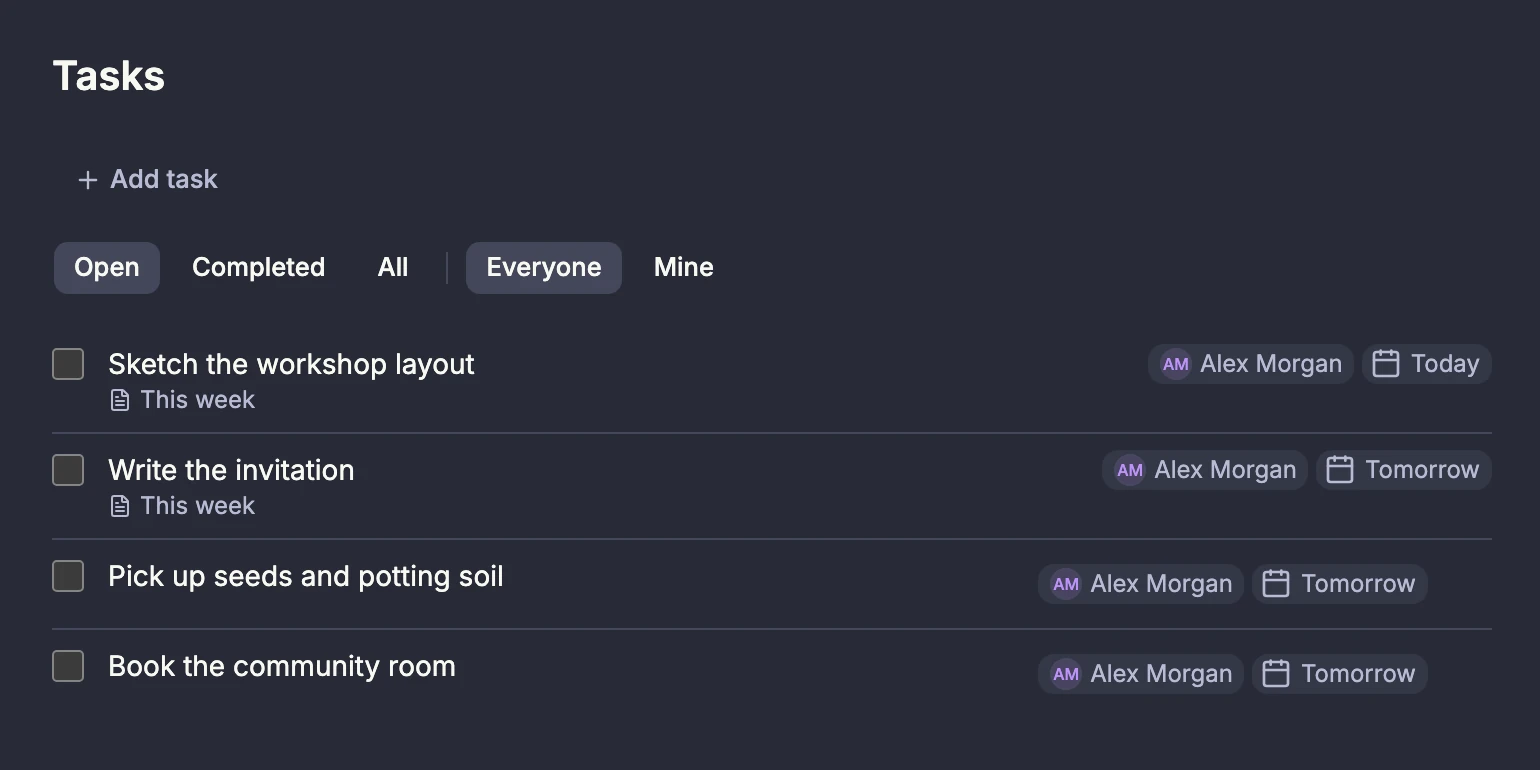
Check a task to complete it. To reopen one, switch to Completed or All, then clear its checkbox.
If a task seems missing, check the workspace, completion filter, and assignment filter. Tasks belonging to a page in Trash do not appear in the active task list; restore the page to bring it back.
Plan a week from one page
Create a page called “This week.” Add headings for your projects and task blocks for the next actions. Assign the tasks and set their dates, then use Home for today's work and the page for the broader plan.
With a connected AI agent, you can ask: “Turn the action items on the This week page into tasks and assign them to me.” Include the workspace name if you have more than one page with that title. Review the tasks in the web app after the agent creates them.