Working with canvases
Sketch inside a page or start a drawing of its own, with editable templates.
Use a canvas for a diagram, wireframe, sketch, or collection of ideas. Put it inside a page when the drawing belongs with your notes, or create a standalone canvas for work that needs its own space.
Draw inside a page
- Open a page and type
/where the drawing belongs. - Choose Canvas.
- Use the drawing tools inside the canvas to add shapes, arrows, text, or freehand strokes.
- Choose Expand canvas when you need more room.
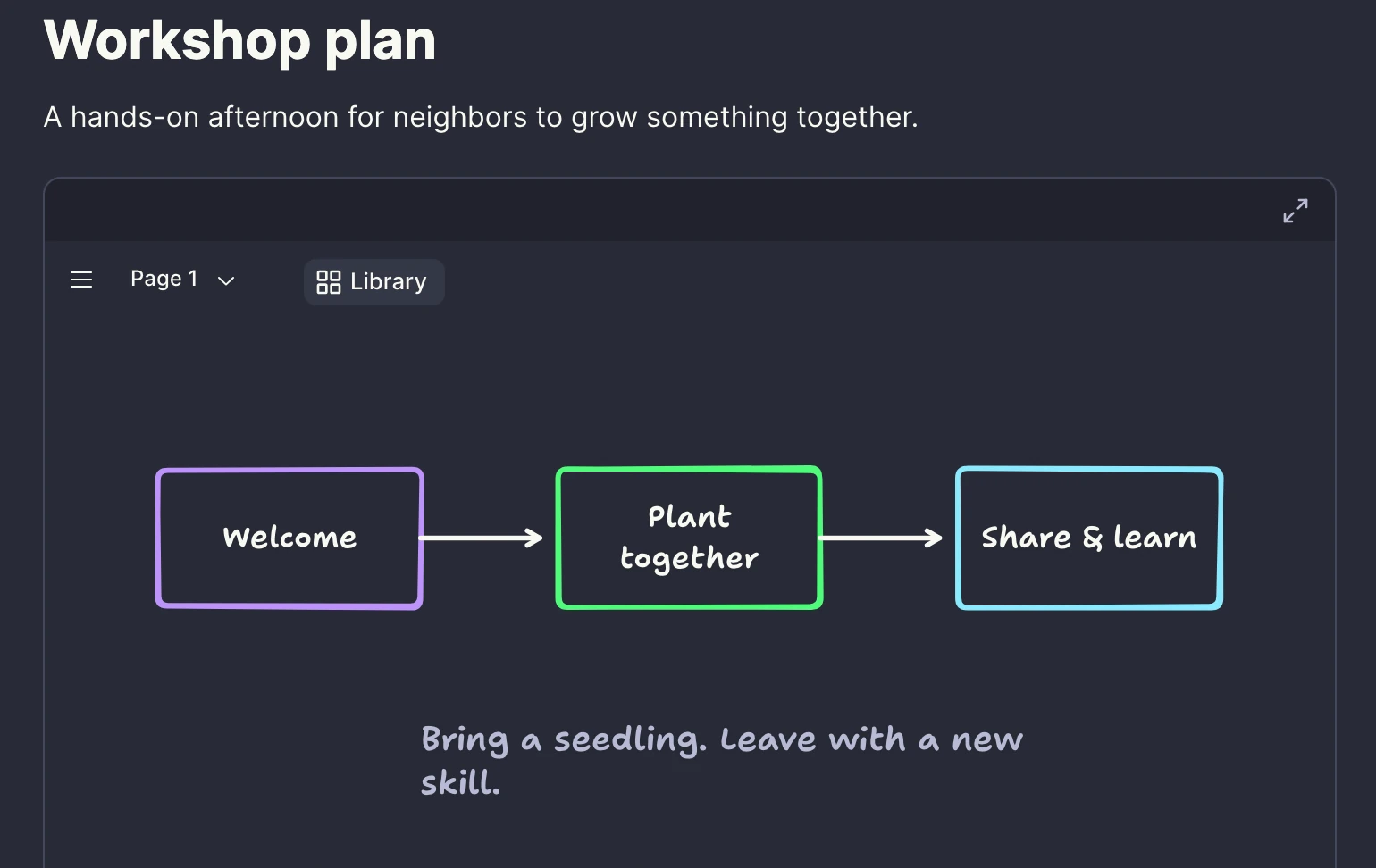
A drawing inside a page is called an inline canvas. It stays with that page, so you can keep writing around it. It does not appear in the Canvases list, but workspace search can find its title and drawing text.
Create a standalone canvas
- Open Canvases in the sidebar and choose New canvas.
- Enter a title and choose Create canvas.
Open the drawing again from the Canvases list, workspace search, or your recent items on Home.
Use the star in the Canvases list to add a drawing to your favorites. In the web app, the canvas header's options menu also lets you rename it.
Start from the library
- Open Library inside the canvas.
- Choose Components for individual building blocks or Templates for a larger starting point.
- Search for the kind of drawing you need and select an item to insert it.
- Select its text and shapes to adapt it to your work.
Library items are editable drawing elements. You can change their labels, colors, layout, and connections after inserting them.
Arrange your drawing
Select a shape to move, resize, or style it. Select several shapes to arrange them together. Use the selection's context menu for grouping and alignment controls; frames help organize a larger drawing into sections.
Use text and arrow labels to explain relationships. These labels are also searchable, so meaningful names make large canvases easier to revisit.
Add an image using the canvas's media controls, or drag an image file onto the drawing from your computer. Keep reference images beside the shapes you are working on.
Save and work together
Canvas changes save automatically. Other workspace members with editing access can work on the same drawing. If your connection drops, keep the canvas open until it reconnects and shows that your changes have saved.
To recover an earlier drawing, use canvas history. Restoring a page version can bring back an inline canvas's place in the page, but does not restore the drawing to that time.
Deleting a standalone canvas from the Canvases list is permanent. It does not move to Trash, and you cannot recover it through canvas history.
Draw with an AI agent
With a connected AI agent, name the canvas and describe the changes you want. Include the workspace name when needed, and identify shapes by their labels. For example:
- “In the Project plan canvas, align the Research, Design, and Build cards and space them evenly.”
- “In the Checkout flow canvas, put the Cart, Payment, and Confirmation steps in a frame called Checkout.”
- “Add a settings screen wireframe template to the App ideas canvas.”
The agent can inspect and edit drawing elements, including groups, frames, and images, when its connection has the required access. Open the canvas in the web app to review the changes and continue drawing.