Getting started
Find your way around and make a home for your notes, tasks, and drawings.
Haunter keeps notes, tasks, and drawings in the same workspace. Use a page for your notes, a task for something you need to do, and a canvas for a drawing or diagram.
Sign in and choose a workspace
- Open Haunter and enter your email address.
- Enter the six-digit code sent to your email and follow any account setup prompts. If your account is waiting for access, follow the message on screen.
- Once you are in the app, select the workspace name at the top of the sidebar to see your workspaces. Choose one to open it, or choose New workspace to create another.
A workspace contains its own pages, tasks, canvases, and members. Check the workspace name before creating something or searching. On a phone, open the sidebar using the button at the top of the screen.
Create your first page
- In the sidebar, select the New page button beside Pages.
- Give the page a title, such as “Plan my week.”
- Click or tap below the title and start writing.
- Type
/on a new line to open the insert menu. Choose Heading 1 to add a section, or Task to add something you need to do.
Changes save automatically. Check the save status in the page header before closing, especially if your connection drops. Learn how to check that your work is saved.
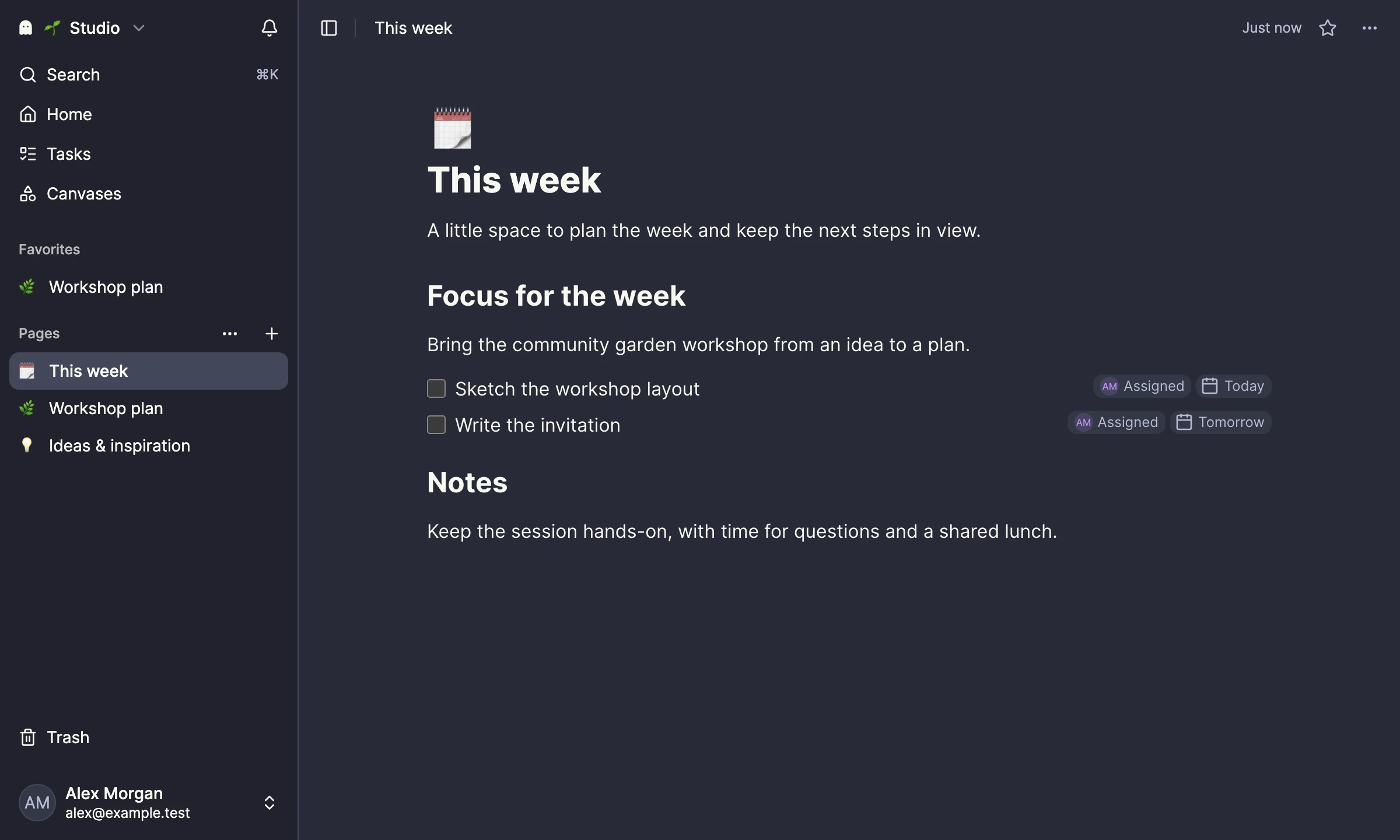
Your first workspace includes Start here and This week as example pages. Edit them or move them to Trash when you no longer need them.
Find your way around
- Home brings together your assigned tasks, favorites, and recently viewed pages and canvases.
- Pages shows your notes and their nested subpages. Expand a page to see its children.
- Tasks collects tasks from pages and tasks created on their own.
- Canvases lists standalone drawings. Drawings inserted into a page stay with that page.
- Search finds pages, tasks, and canvases in the current workspace.
- Trash holds pages you have removed until you restore or permanently delete them.
Use the star in a page header or beside a canvas in the Canvases list to add it to your favorites. Favorites are personal to you.
Make it comfortable
Open your account menu at the bottom of the web app's sidebar, then choose Settings → Appearance to change your theme. You can also set light, dark, or system mode from the account menu.
The sidebar button at the top of the workspace gives you more room to write. On small screens, it opens and closes navigation.
Try a small workflow
Write three priorities on your new page. Type / and choose Task for the first priority. Use the controls beside it to assign it to yourself and set a due date of today. Open Home to see it under Today, then follow its page link back to your notes.
Continue with writing and organizing, managing tasks, or working with canvases.